
Q: What is the New Content Experience?
A: The New Content Experience, also known as Lessons, offers a clean, minimalist design for administrators setting up a course and for learners navigating the materials. The instructors using it say it is more intuitive and easier to view the course setup with color-coded levels of folders. Students using it in these courses have a different view, and generally have not had any questions about navigating the course.
Q: When did the New Content Experience become available?
A: The New Content Experience became available for all Polestar Education administrators and faculty in August. 2021. Course Administrators/Editors control the view, and they can opt-in or opt-out according to their preference. There are no future dates planned for when D2L will switch all courses to the new experience and there should be ample warning before we do have a date.
Q: Can students turn the New Content Experience on or off?
A: No. Students cannot switch their view of content. It is determined by the instructor's choice of whether or not to turn on the New Content Experience. The student's viewing experience is called the new Learner Experience (LX or LE).
Q: How are modules and sub-modules different in the New Content Experience, and what are the limits on sub-module levels?
A: The new experience supports three levels of modules and sub-modules. Top-level modules are called Units (though you can label them any way you wish). The second level sub-modules are called Lessons. Sub-modules within Lessons are called Folders. No more sub-modules can be created deeper than the level of a folder (Unit>Lesson>Folder - content items can be added to any of these three levels). This is consistent with UDL best practices.
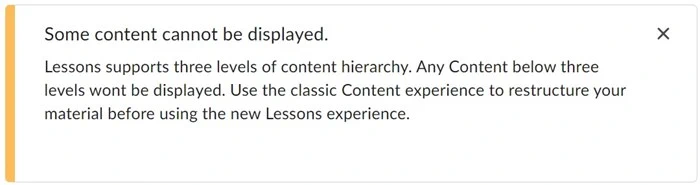
Existing fourth-level sub-modules will not display, and a warning message will appear. The sub-module and its content still exist and can be located in the Course Builder tool if you need to move them up a level. You can also opt-out of the New Content Experience to move the sub-module to a different location.
Q: Can dates be added to content items?
A: Date management has been added for most topic types. This includes Units, Lessons, Folders, webpages (new file), uploaded files (e.g., Word, PPT, PDF) and links. Activity properties are usually set in the tool settings for Assignments, Discussions, Quizzes, etc. Go to the Classlist and impersonate the Demo Student to get a true view of what students will see when restricted dates (start/end) and due dates are added. Dates can be managed in the edit menu for a content topic, or by going to Course Admin > Manage Dates.
Note: Learners cannot see topics, including Assignments and Quizzes, that have a future start date or past end date. Create an HTML document as a placeholder explaining when the items will appear.
New starting January 2023: Content links to Assignment and Discussion activities now have more date availability options to make the links visible to learners with start dates shown. After entering or editing a start date, click on the link below the date and select "Visible with submission restricted" to allow the student to see the activity title and start date. They can access the item but will not be able to submit or post until after the displayed start date.
Go to Course Admin > Availability Date Defaults to set the preferred date availability behavior for new activities.
Q: Why do the folder items sometimes not display a count of the items contained in the folder?
A: You might be entering information in the folder descriptions rather than adding files to the folders. Place teaching materials within the folders as a new page (Create New > HTML Document) or upload files. You can drag-and-drop files from your computer to the desired location. Teaching from the folder description area removes much of the functionality that students rely on for streamlined navigation, viewing, and printing. Keep unit/lesson/folder descriptions short. Consider adding a decorative photo for visual engagement. Find free photos at pexels.com.
Note: Printing PDFs is supported via the Brightspace PDF viewer (or browser view); printing of other types of topics may not be supported but can now be downloaded and viewed in their original format.
Q: Where can I go for training and support?
A: Help documentation is located in the "New Content Experience" module within the Instructor D2L Self-directed training site (see D2L Help > Educational Technology Training for access).
Other D2L Brightspace help documentation and videos:
- The New Content Experience in Brightspace
- Lessons for Instructors (D2L video tutorials)
For other questions and concerns, contact the Polestar Education Support Team.